

In today’s security-conscious environment, maintaining comprehensive audit logs and integrating them with Security Information and Event Management (SIEM) systems is crucial. Citrix NetScaler (formerly known as Citrix ADC) provides robust syslog capabilities that can be leveraged to enhance your organization’s security posture and compliance efforts.
Understanding NetScaler’s Audit Logging Capabilities
NetScaler generates various types of logs that can be valuable for security monitoring:
- System events
- Authentication attempts
- Configuration changes
- Load balancing decisions
- SSL transactions
- Application Firewall events
Configuring Syslog Servers in NetScaler
Prerequisites
- A running syslog server (such as kiwi syslog, rsyslog, syslog-ng or any other SIEM product)
- Network connectivity between NetScaler and syslog server. Please note that if you are going to use an FQDN for the server name, you must enable ICMP (ping)
- Required ports open (typically UDP 514 or TCP 514)
Basic Syslog Configuration
Via Command Line Interface (CLI):
add audit syslogAction SIEM-Logger-01 IP -serverPort 514 -logLevel INFO -dateFormat MMDDYYYY
add audit syslogPolicy SIEM-Policy-01 true SIEM-Logger-01
bind system global SIEM-Policy-01 -priority 100
Via NetScaler GUI:
Navigate to System > Auditing > Syslog > Servers Click “Add” and Configure the following parameters:
- Name: SIEM-Logger-01
- Server: IP
- Port: 514
- Log Level: INFO (add others if you need to)
- Date Format: MMDDYYYY
- Time Zone: Local
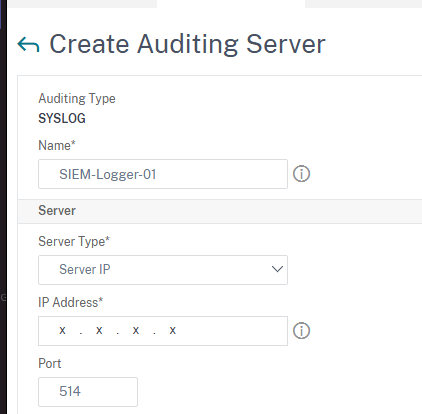
You can either choose to send all the logs or select the ones that you want to be send. I have shown both examples below. Also check the table below to get an idea of what gets logged when you choose these log levels.
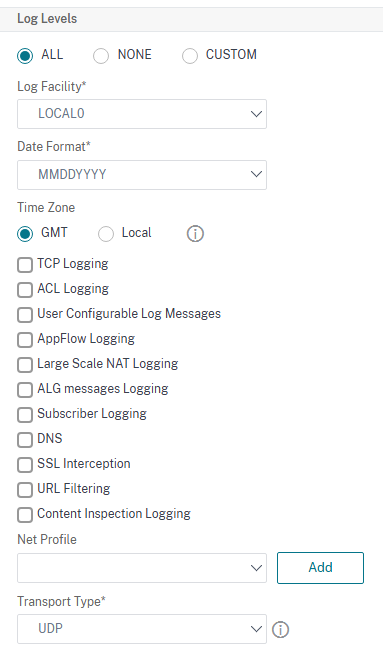
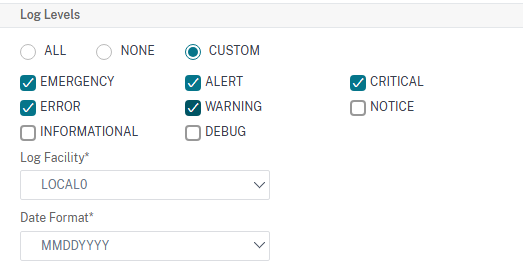
By default, syslog messages are sent over UDP 514. You can choose to change it by selecting TCP under Transport type as shown below
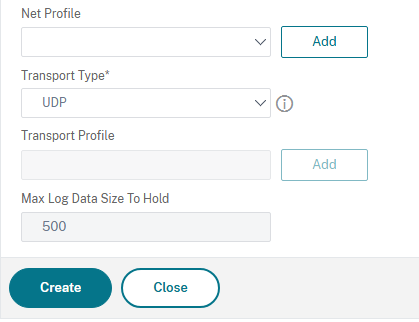
click Create to create the syslog action.
Now, let’s create the syslog policy. For that click on the Policies tab under Syslog Auditing
Click Add
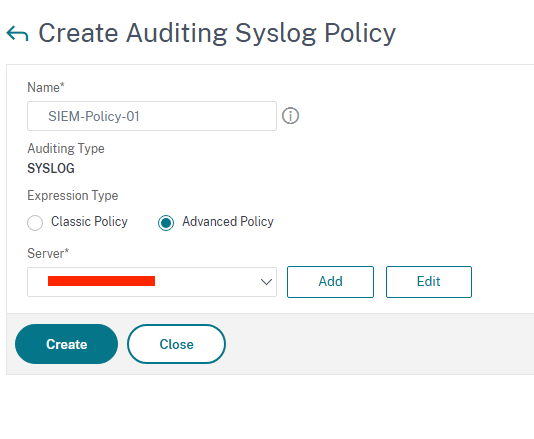
Give the policy a Name and ensure Advanced Policy is selected. From the Server field, select the entity that we created in the earlier step – SIEM-Logger-01 and click Create
Last step to complete the config is to bind the policy globally.
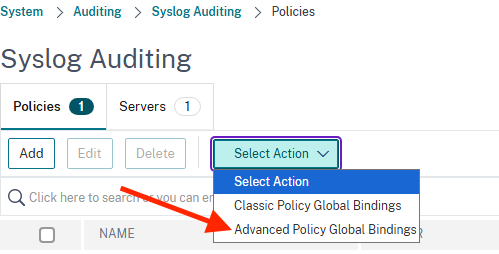
Click Select Action drop down and select Advanced Policy Global Bindings
Click Add binding

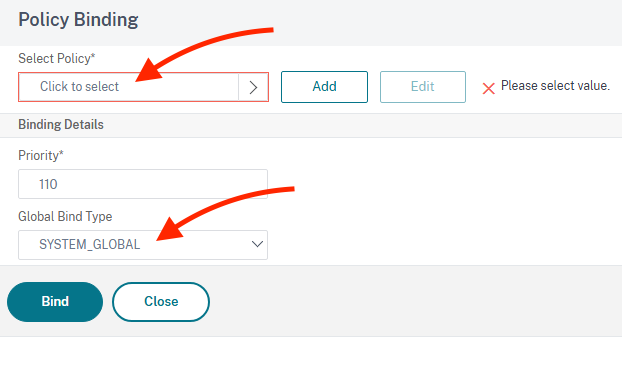
Click to select the policy and the global bind type set to System_Global
Log Levels
| logLevel | Explanation |
|---|---|
| ALL | All events |
| EMERGENCY | Events that indicate an immediate crisis on the server. |
| ALERT | Events that might require action. |
| CRITICAL | Events that indicate an imminent server crisis. |
| EEROR | Events that indicate some type of error. |
| WARNING | Events that require action in the near future. |
| NOTICE | Events that the administrator should know about. |
| INFORMATIONAL | All but low-level events. |
| DEBUG | All events, in extreme detail. |
| NONE | No events. |
What’s the Syslog source IP on the NetScaler?
It’s the NSIP (Mgmt IP) so you will need to advise your SIEM person to add the NSIP of the NetScaler as the source. You can change this to Subnet IP or any other IP for that matter by using a Net Profile
References
audit-syslogAction
Remember to regularly review and update your logging configuration as your environment evolves and new security requirements emerge.
 Citrixology
Leave a Reply